How to install Ibo Player Pro on Amazon Firestick?
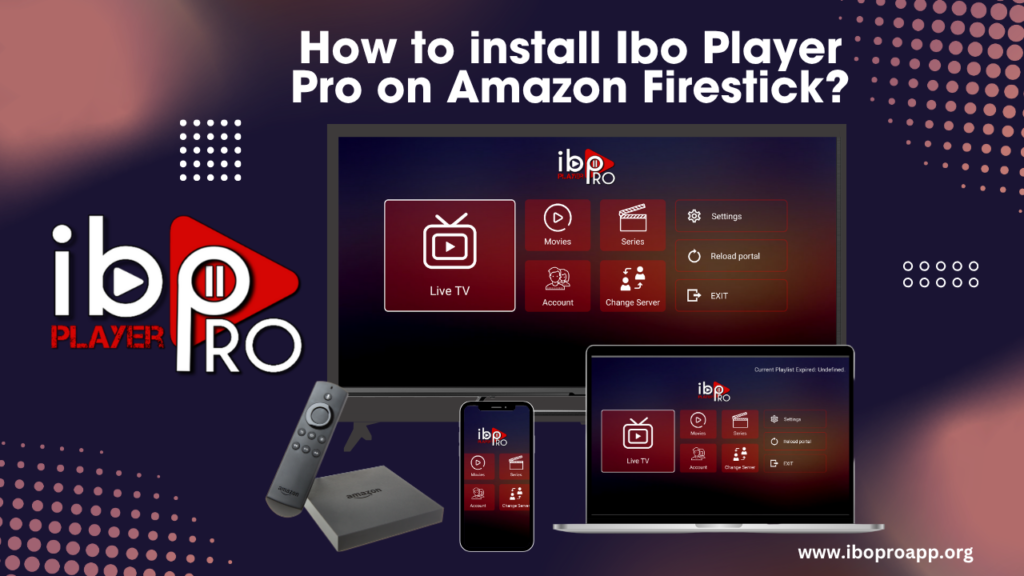
Ibo Player Pro on amazon firestick has emerged as a versatile media player, offering users a streamlined experience for managing and playing their favorite content. While initially popular on other platforms, many Amazon Firestick users are keen to leverage its features for their home entertainment. This guide will walk you through the process of installing Ibo Player Pro on Amazon Firestick, enabling you to enjoy your media library with ease.
Understanding Ibo Player Pro
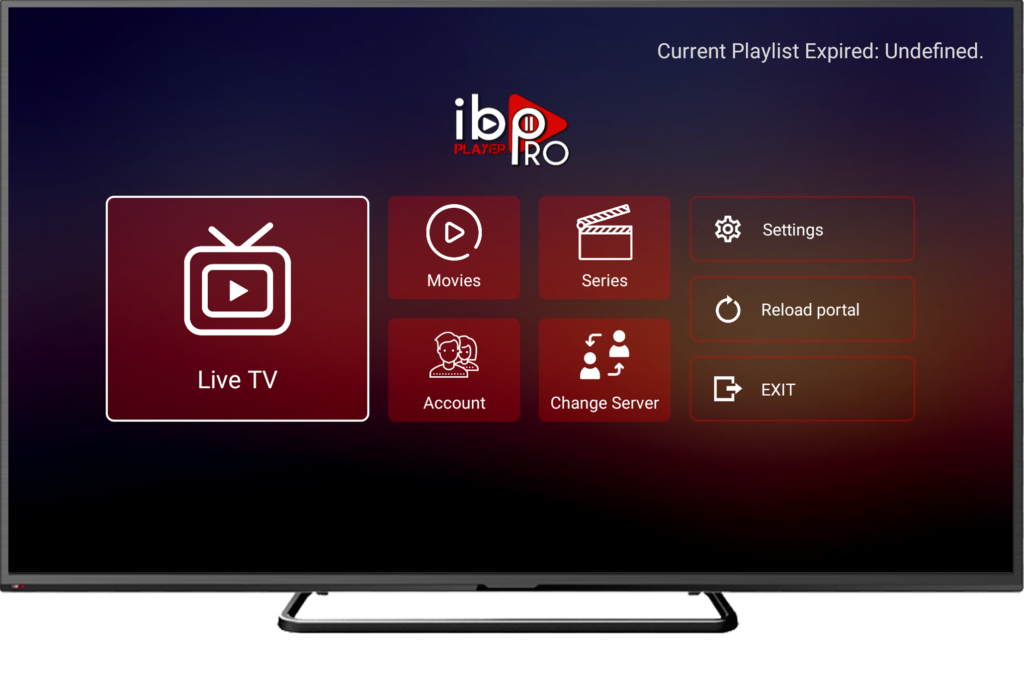
Ibo Player Pro on amazon firestick is designed to provide a user-friendly interface for playing various media formats, managing playlists, and potentially connecting to different content sources. Its adaptability and support for a range of codecs make it an appealing choice for those looking to consolidate their media playback needs into a single application. While not natively available on the Amazon Appstore, there are established methods to install it on your Firestick.
Prerequisites Before You Begin
Before diving into the installation process, ensure you have the following:
- Your Amazon Firestick connected to your TV and a stable internet connection.
- Access to your Amazon account associated with the Firestick.
- A few minutes of your time to follow the steps carefully.
Step-by-Step Guide to Installing Ibo Player Pro on Amazon Firestick
Since Ibo Player Pro isn’t directly available on the Amazon Appstore, we’ll use the “Downloader” app, a popular tool for sideloading applications onto Firestick devices.
Step 1: Enable “Apps from Unknown Sources”
This setting allows your Firestick to install applications from sources other than the Amazon Appstore.
- Turn on your Amazon Firestick and navigate to the Settings menu (usually a gear icon on the far right of the main menu).
- Select My Fire TV (or Device & Software on some older models).
- Choose Developer Options. If you don’t see this option, go to “About,” select your Fire TV Stick name multiple times until you see a “No need, you are already a developer!” message, and then return to the previous menu.
- Within Developer Options, find Apps from Unknown Sources and turn it ON. You might see a warning message; acknowledge it and proceed.
Step 2: Install the “Downloader” App
Downloader is a free app available on the Amazon Appstore that facilitates the downloading and installation of APK (Android Application Package) files.
- Go back to the Firestick home screen and use the search function (magnifying glass icon) to search for “Downloader”.
- Select the Downloader app from the search results (it’s usually the one with an orange “D” logo).
- Click “Get” or “Download” to install the Downloader app on your Firestick.
- Once installed, click “Open” to launch the Downloader app.
Step 3: Download the Ibo Player Pro APK File
You’ll need to obtain the APK file for Ibo Player Pro. Ensure you are downloading it from a reputable source to avoid security risks. You can use the Downloader app to directly enter the URL of the APK file.
Download the Apk for Android, Amazon Fire TV HERE (downloader code 481220)
- In the Downloader app, you’ll see a text field labeled “Enter a URL or Search Term.” Click on it.
- Using the on-screen keyboard, type in the URL where the Ibo Player Pro APK file is hosted. Be extremely careful when typing the URL to ensure accuracy.
- Once you’ve entered the URL, click “Go.”
- Downloader will begin downloading the APK file to your Firestick.
Step 4: Install Ibo Player Pro on Amazon Firestick
After the APK file has been downloaded, Downloader will prompt you to install it.
- A system installation window will appear. Scroll down and click “Install.”
- The installation process will begin. Wait for it to complete.
- Once the installation is finished, you’ll see a notification that the app has been installed. You can now click “Open” to launch Ibo Player Pro or “Done” to return to the Downloader app.
Step 5: Accessing Ibo Player Pro on Amazon Firestick
You can access Ibo Player Pro from your Firestick’s app list.
- Go back to the Firestick home screen.
- Navigate to “Your Apps & Channels” (usually located towards the left side of the menu). You might need to select “See All” to view the complete list.
- Locate the Ibo Player Pro app icon and launch it.
Check out our IPTV service subscriptions!
Important Considerations
- Source Reliability: Always download APK files from trusted sources to minimize the risk of installing malware or corrupted software.
- Updates: Apps installed via sideloading might not automatically update. You may need to periodically check for newer versions and repeat the download and installation process.
- Compatibility: While Ibo Player Pro is an Android application, its full compatibility with the Firestick interface and remote control may vary.
Contact us if you have any question!
Frequently Asked Questions (FAQ)
Is Ibo Player Pro officially available on the Amazon Appstore?
No, as of the current knowledge, Ibo Player Pro is not directly available for download from the Amazon Appstore.
Why do I need to enable “Apps from Unknown Sources”?
This setting is necessary to allow your Firestick to install applications that are not downloaded from the official Amazon Appstore, such as the Ibo Player Pro APK file.
Is it safe to install apps from unknown sources?
Installing apps from unknown sources carries a potential risk of security vulnerabilities or malware. It’s crucial to only download APK files from reputable and trusted sources.
What is the Downloader app used for?
The Downloader app is a utility for Amazon Firestick devices that allows users to easily download files from the internet, including APK files for sideloading applications.
Where can I find a reliable APK file for Ibo Player Pro?
It’s recommended to obtain the APK file from the official website of Ibo Player Pro or from well-known and trusted Android APK repositories. Exercise caution and verify the source before downloading.
Will Ibo Player Pro automatically update on my Firestick after sideloading?
No, applications installed via sideloading typically do not update automatically. You will likely need to manually check for updates and repeat the download and installation process for newer versions.
Can I use my Firestick remote to control Ibo Player Pro?
While basic navigation should work, full compatibility with the Firestick remote may vary depending on how the Ibo Player Pro app was designed. You might need to use the Firestick remote’s navigation buttons for selection and playback.