How to install Ibo Player Pro on Android TV using downloader code?
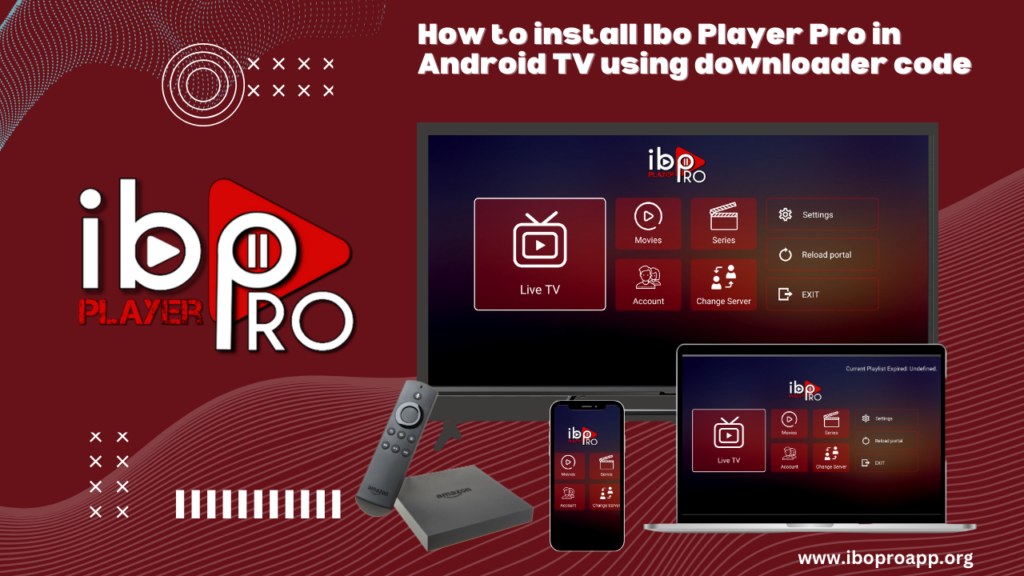
Want to experience the versatility of Ibo Player Pro on your Android TV? While direct installation from app stores might not always be available, the Downloader app provides a convenient workaround using specific codes. This guide will walk you through the process step-by-step, ensuring you can enjoy your favorite media on the big screen by installing Ibo Player Pro on Android TV.
What is Downloader and Why Use It?
Downloader is a popular application available on the Amazon Appstore and Google Play Store for Android TV devices. It allows you to easily download files from the internet using URLs or specific codes. This is particularly useful for installing apps that aren’t directly listed in the official app stores.
Prerequisites Before You Begin
- Your Android TV device connected to the internet.
- Downloader app installed on your Android TV. You can find it in the Google Play Store or Amazon Appstore and install it.
- Ensure “Install unknown apps” or “Unknown sources” is enabled for the Downloader app in your Android TV’s security settings. This permission allows Downloader to install apps from outside the official stores.
- A stable internet connection for downloading the Ibo Player Pro APK file.
Enabling “Install Unknown Apps” (Steps may vary slightly based on your Android TV version):
- Go to your Android TV’s Settings.
- Navigate to Security & restrictions or Apps.
- Look for Special app access or Install unknown apps.
- Find Downloader in the list and toggle the switch to “On” to allow it to install unknown apps.
Steps to Install Ibo Player Pro on Android TV Using Downloader Code
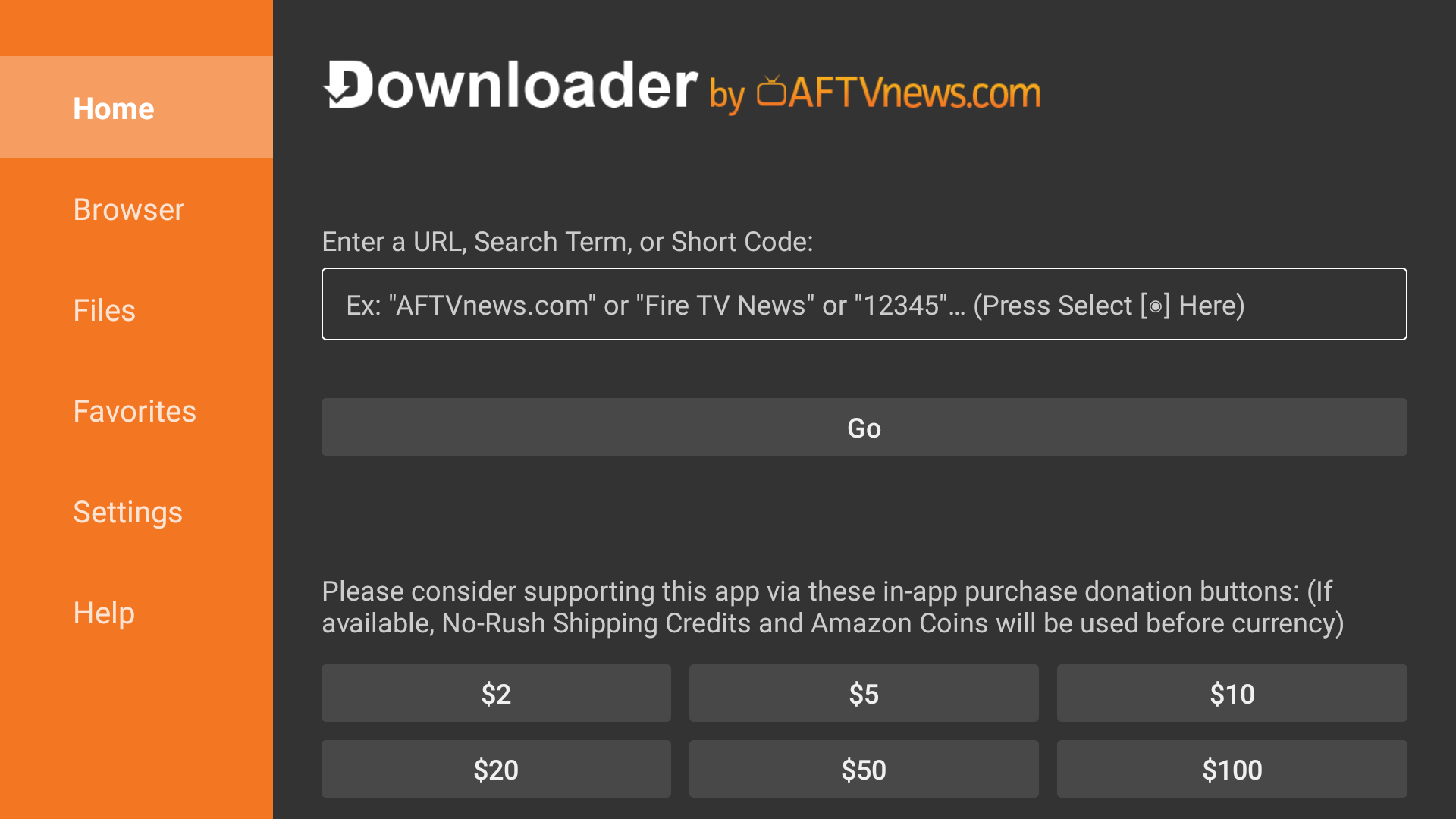
- Open the Downloader App: Launch the Downloader application on your Android TV.
- Navigate to the “Home” tab on the left-hand menu.
- Enter the URL or Code: You’ll see a text box where you can enter a URL or a Downloader code. Since we’re focusing on codes, you’ll typically use a shortened URL or a specific numerical code provided by the Ibo Player Pro source (if available).Example Scenario: Let’s say the Ibo Player Pro provider gives you a specific Downloader code. You would enter this code into the text box.Important Note: Downloader codes are often temporary or specific to a particular source. You’ll need to obtain a valid and up-to-date code or a direct APK URL from a reliable source for Ibo Player Pro.
- Click “Go”: Once you’ve entered the correct code or URL, click the “Go” button.
- Download the APK File: Downloader will connect to the server and begin downloading the Ibo Player Pro APK (Android Application Package) file.
- Install Ibo Player Pro on Android TV: Once the download is complete, Downloader will prompt you to install the application. Select “Install”.
- Follow On-Screen Instructions: The Android TV system will guide you through the installation process.
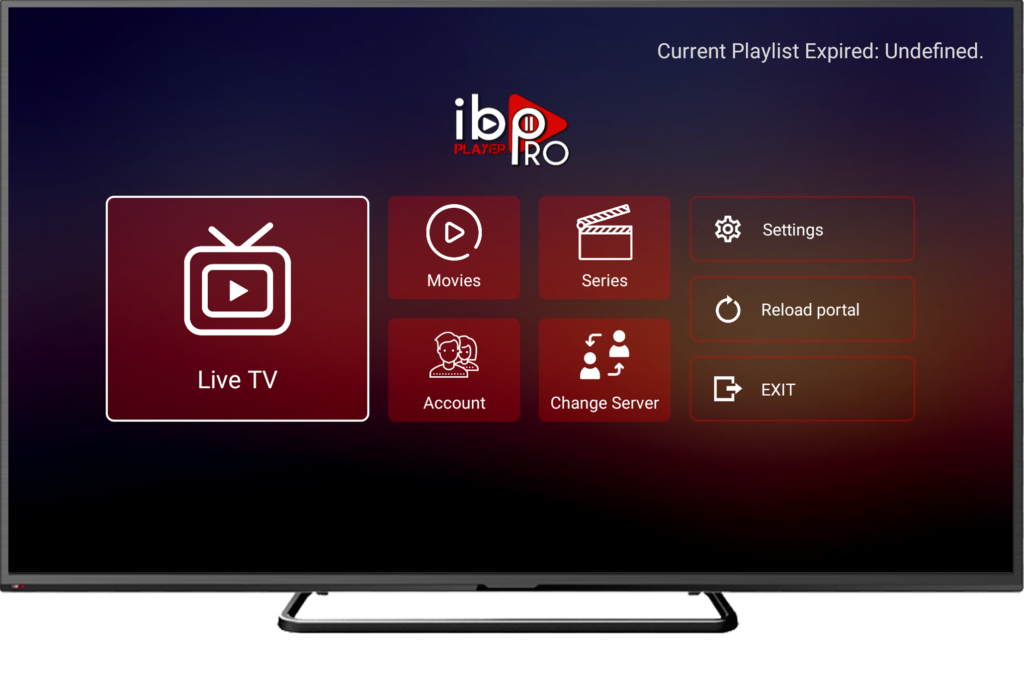
- Open Ibo Player Pro: After the installation is finished, you can usually find the Ibo Player Pro app in your list of installed applications on your Android TV. Launch it and enjoy!
- Congrats, you have Ibo Player Pro on Android TV.
- (Optional) Delete the APK File: To free up storage space, you can go back to the Downloader app and delete the downloaded APK file after successful installation.
Troubleshooting Tips
- Check the Code/URL: Ensure you have entered the Downloader code or URL correctly. Double-check for any typos.
- Internet Connection: Make sure your Android TV has a stable and active internet connection.
- “Install Unknown Apps” Permission: Verify that you have enabled “Install unknown apps” for the Downloader app in your security settings.
- APK File Issues: If the installation fails, the APK file might be corrupted or incompatible with your Android TV. Try downloading it again from a different reliable source if possible.
- Downloader App Updates: Ensure your Downloader app is up to date. An outdated version might have compatibility issues.
Important Considerations
- Source Reliability: Only download APK files from trusted sources to avoid installing potentially harmful software.
- Compatibility: While Ibo Player Pro is designed for Android, its compatibility with specific Android TV devices can vary.
- Updates: Apps installed via Downloader might not automatically update like those from the official app stores. You may need to manually check for and install updates periodically.
Check out our IPTV service subscriptions!
Conclusion
Installing Ibo Player Pro on Android TV using the Downloader app and a valid code or APK URL can unlock a new level of media enjoyment on your big screen. By following these steps carefully and ensuring you download from reliable sources, you can seamlessly integrate Ibo Player Pro into your smart TV experience. Explore its features and customize your playback to suit your preferences. Enjoy your favorite content!
Frequently Asked Questions (FAQ)
What is a Downloader code?
A Downloader code is a short, often numerical or alphanumeric code that you can enter into the Downloader app on Android TV. This code is linked to a specific file hosted online, usually an APK file for installing apps.
Where do I get a Downloader code for Ibo Player Pro?
Downloader codes for specific apps are typically provided by the developers or distributors of that app. You will need to obtain a valid code for Ibo Player Pro from their official channels or trusted providers.
Is using a Downloader code safe?
Using a Downloader code is generally safe as long as the code comes from a reputable source. Be cautious of codes from unknown or untrusted websites or individuals, as they could lead to the installation of malicious software.
What if the Downloader code doesn’t work?
If the Downloader code doesn’t work, it could be incorrect, expired, or the server hosting the file might be temporarily unavailable. Double-check the code you entered and ensure it’s still valid with the provider.
Will Ibo Player Pro automatically update if installed via Downloader code?
No, apps installed using Downloader codes typically do not update automatically. You will likely need to obtain a new Downloader code or APK URL for newer versions and reinstall the app manually.
Can I use any Downloader code to install Ibo Player Pro?
No, Downloader codes are specific to the file they are linked to. You will need a Downloader code that is specifically for the Ibo Player Pro APK file you intend to install.
What if I accidentally delete the APK file after installing Ibo Player Pro on Android TV?
Deleting the APK file after successful installation is generally fine as the app is already installed on your system. The APK file is just the installer. However, if you need to reinstall the app in the future, you will need to download the APK again using a valid Downloader code or URL.
Contact us if you have any question!